Products
The Products page allows you to create, edit, and manage all purchasable products for your platform. Products define what users can buy—whether recurring subscriptions, one-time purchases, or activation-based items.
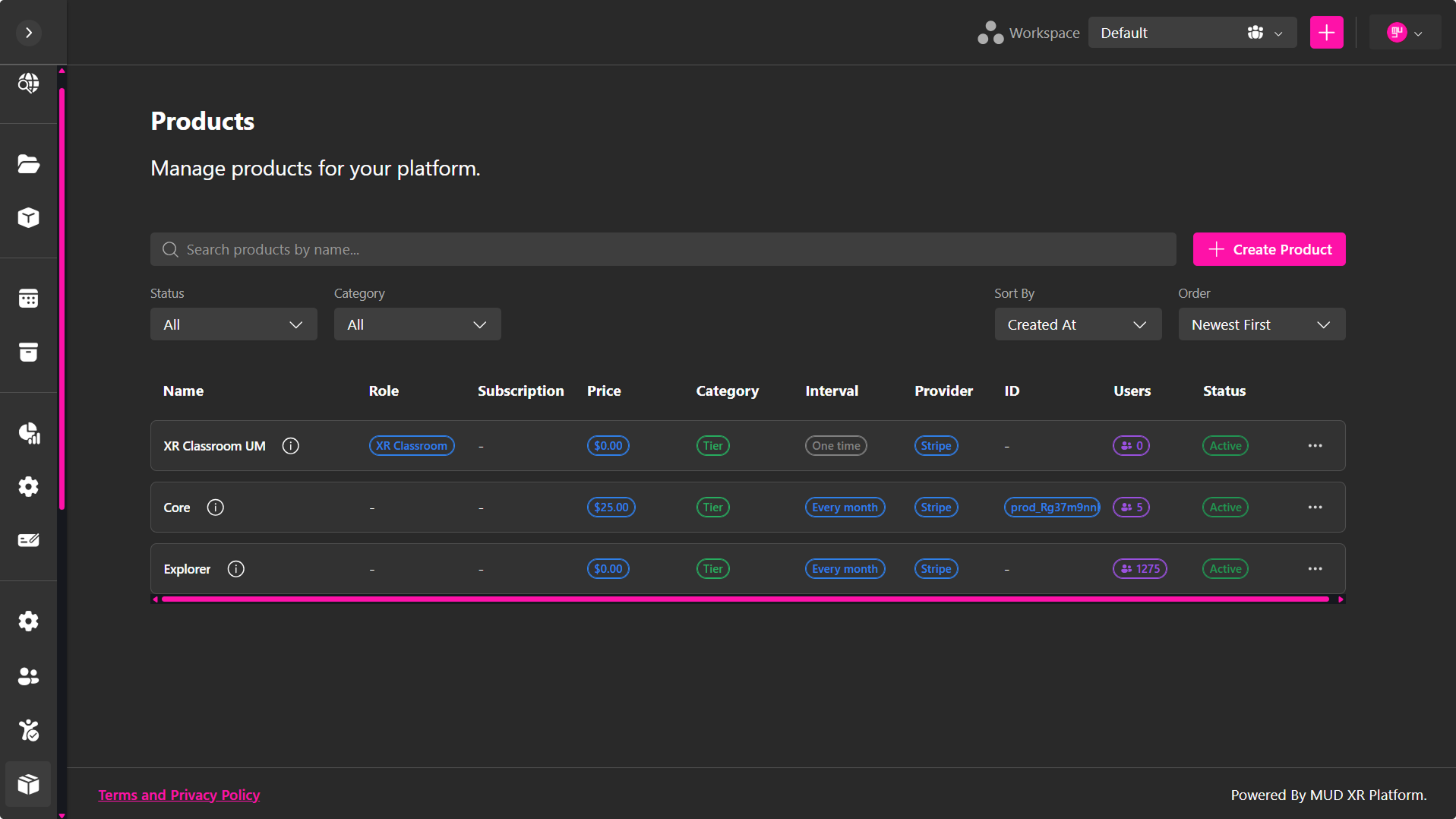
This is where you set pricing, billing intervals, subscription limits, and the role a user receives after purchasing a product.
Create a Product
Click Create Product to open the product creation dialog.
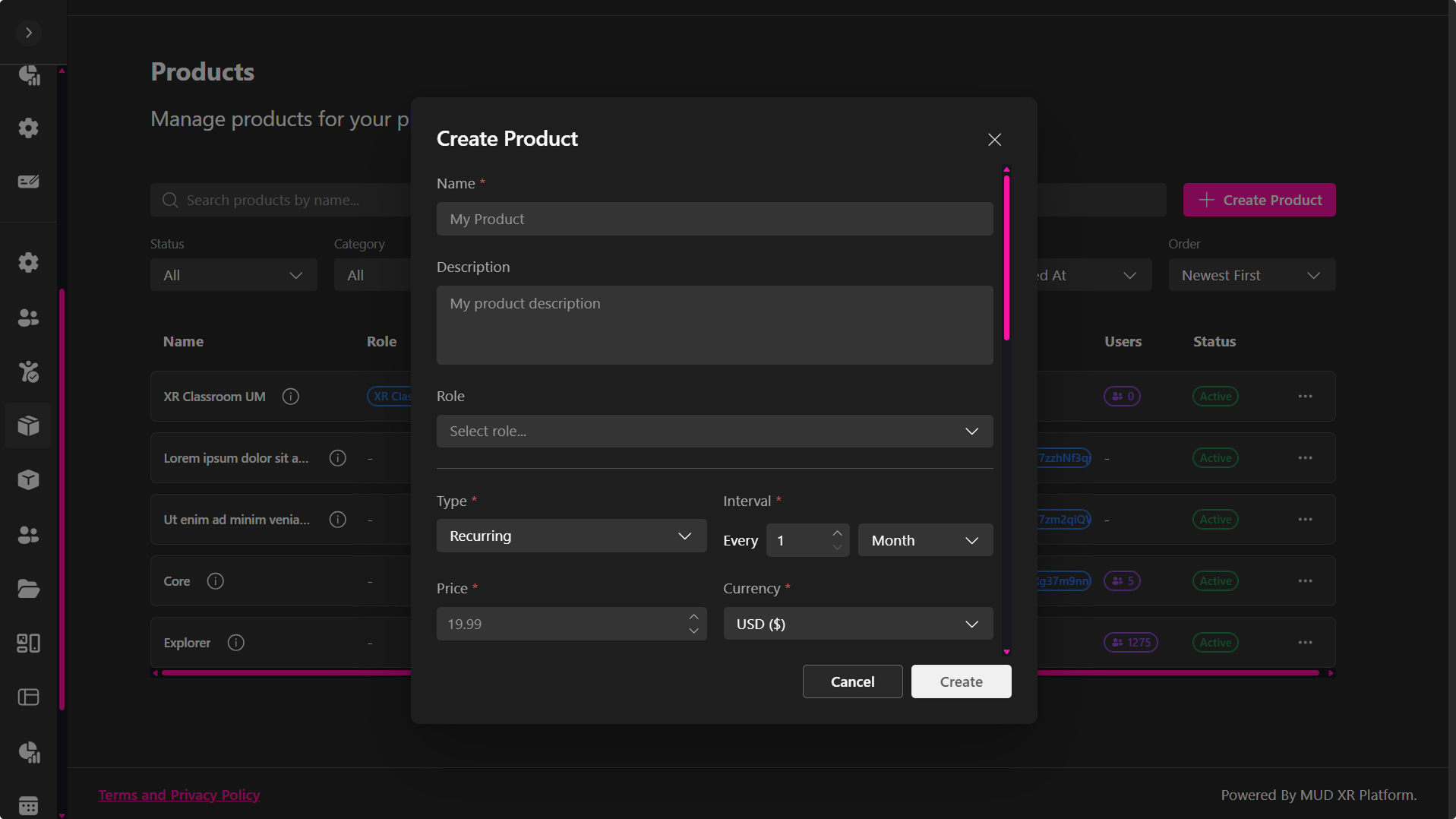
1. Basic Information
Provide the basic information for the product:
- Name – The display name shown to users.
- Description (Optional) – A short description of the subscription or product.
- Role (Optional) – Select the role that will be automatically assigned to users after purchasing this product.
2. Pricing
Configure how the product is billed:
- Type – Choose whether the product is a One-time purchase or a Recurring subscription.
- Interval – For recurring subscriptions, specify the billing frequency (for example, every month or every year).
- Price – Enter the purchase price.
- Currency – Select the currency used for billing.
3. Subscription Limits
Choose how resource limits will be assigned to the product.
Option A — Use Template
Select an existing Subscription Template created in Access Management. The product automatically inherits all limits defined in that template.
Option B — Custom Limits
Define resource limits specifically for this product:
- Concurrent Users (CCU) – Maximum number of users who can simultaneously access the customer's published Verses.
- Microphones – Maximum number of participants who can use microphones simultaneously.
- Cameras – Maximum number of participants who can stream their cameras simultaneously.
- Screen Shares – Maximum number of concurrent screen-sharing sessions.
- Storage (MB) – Maximum storage available for uploaded assets, including images, videos, audio files, documents, and 3D models.
- Projects – Maximum number of Projects the customer can create.
- Workspaces – Maximum number of Workspaces the customer can create.
- Workspace Members – Maximum number of members allowed in each Workspace.
- Instant Access – Maximum number of Instant Access entries the customer can create.
4. External Provider
Configure the payment provider used to process purchases.
- External Provider – Select the payment provider (for example, Stripe).
- External Product ID (Optional) – Enter the product ID from your payment provider if it already exists. If left blank, a new product will be created automatically when supported by the selected provider.
5. Tags
Use tags to categorize products and control where they appear throughout the platform.
For example, adding the xr-creator tag automatically publishes the product to the XRHUB subscription page, making it visible and available for users to purchase.
Managing Products
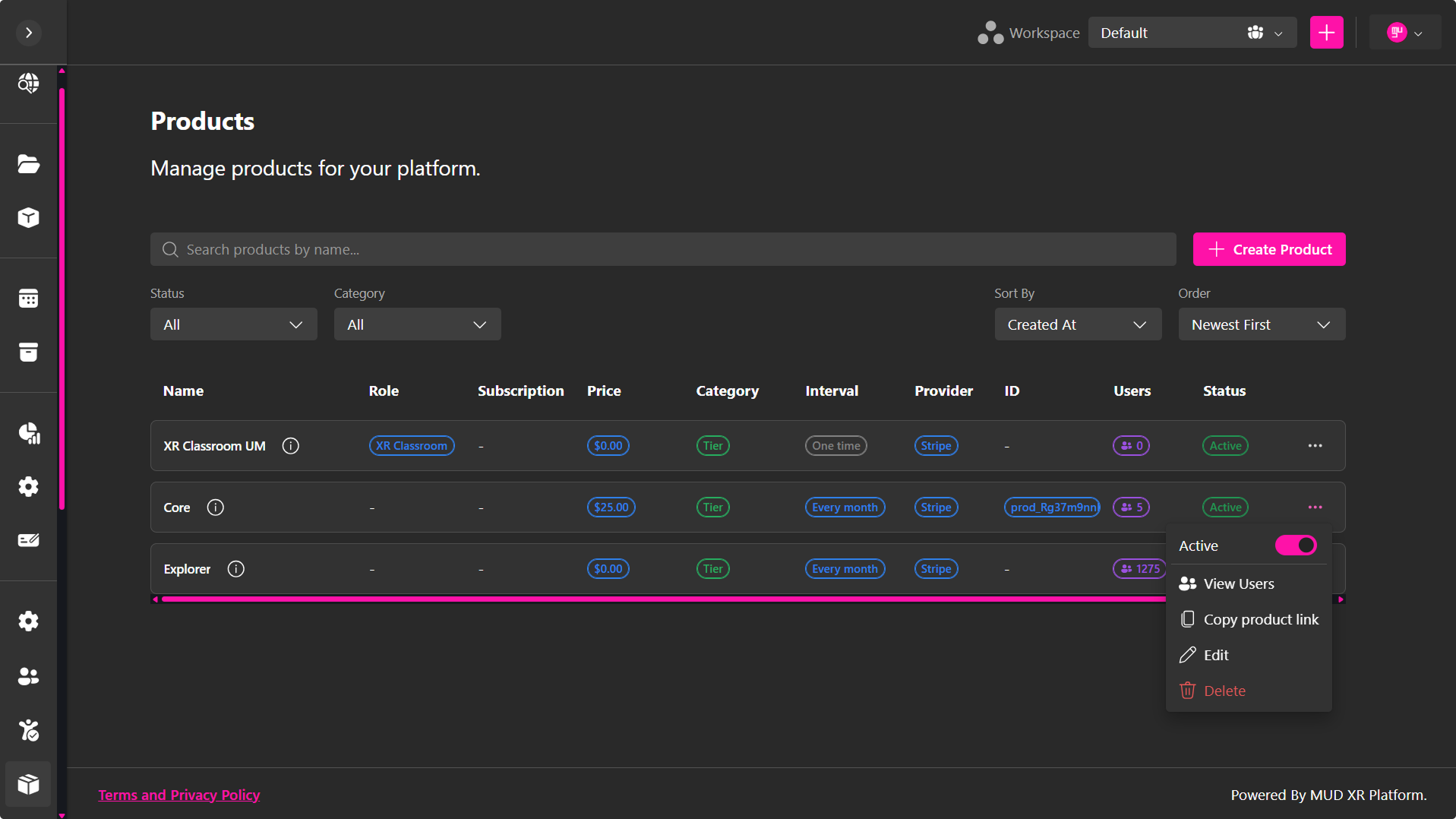
Each product row includes a ⋯ menu with:
- Active Toggle – Enable or disable the product.
- Copy Product Link – Enable or disable the product.
- View Users – See all users who purchased the product.
- Edit – Update pricing, intervals, roles, limits, and metadata.
- Delete – Permanently remove the product.
Inactive products cannot be purchased but remain visible for tracking.
Viewing Product Users
Selecting View Users displays a list of all users who purchased the product. The list includes:
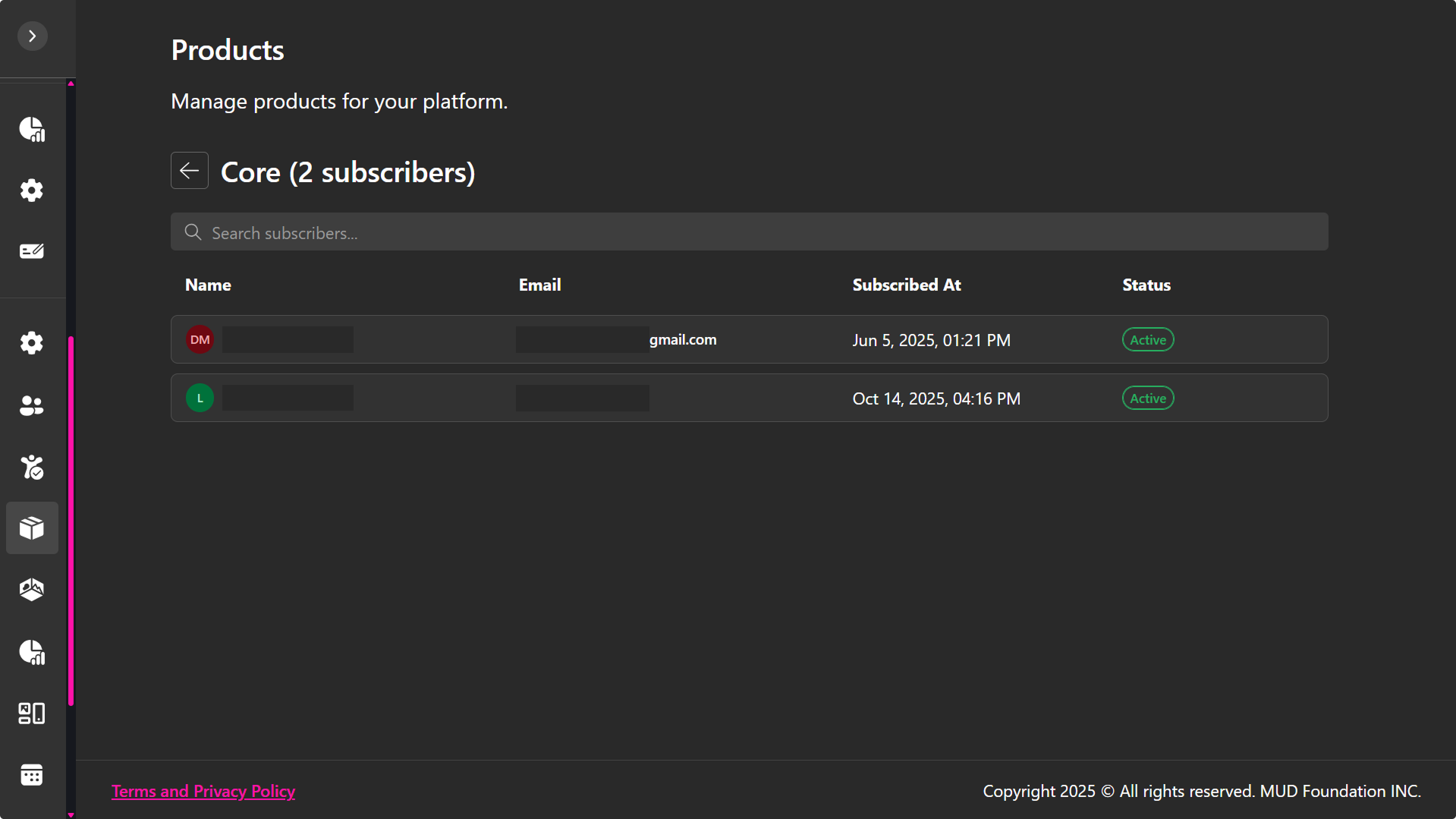
- User email
- Provider
- Status (Active / Expired)
- Start date
- End date
This allows you to monitor active buyers and track subscription expirations.